An expense is money your store spends, such as rent or supplies. Open Expenses to keep these records.
Adding an expense records the cost. It does not pay the bill from your bank.

 Visit website
Record money your store spends.
An expense is money your store spends, such as rent or supplies. Open Expenses to keep these records.
Adding an expense records the cost. It does not pay the bill from your bank.
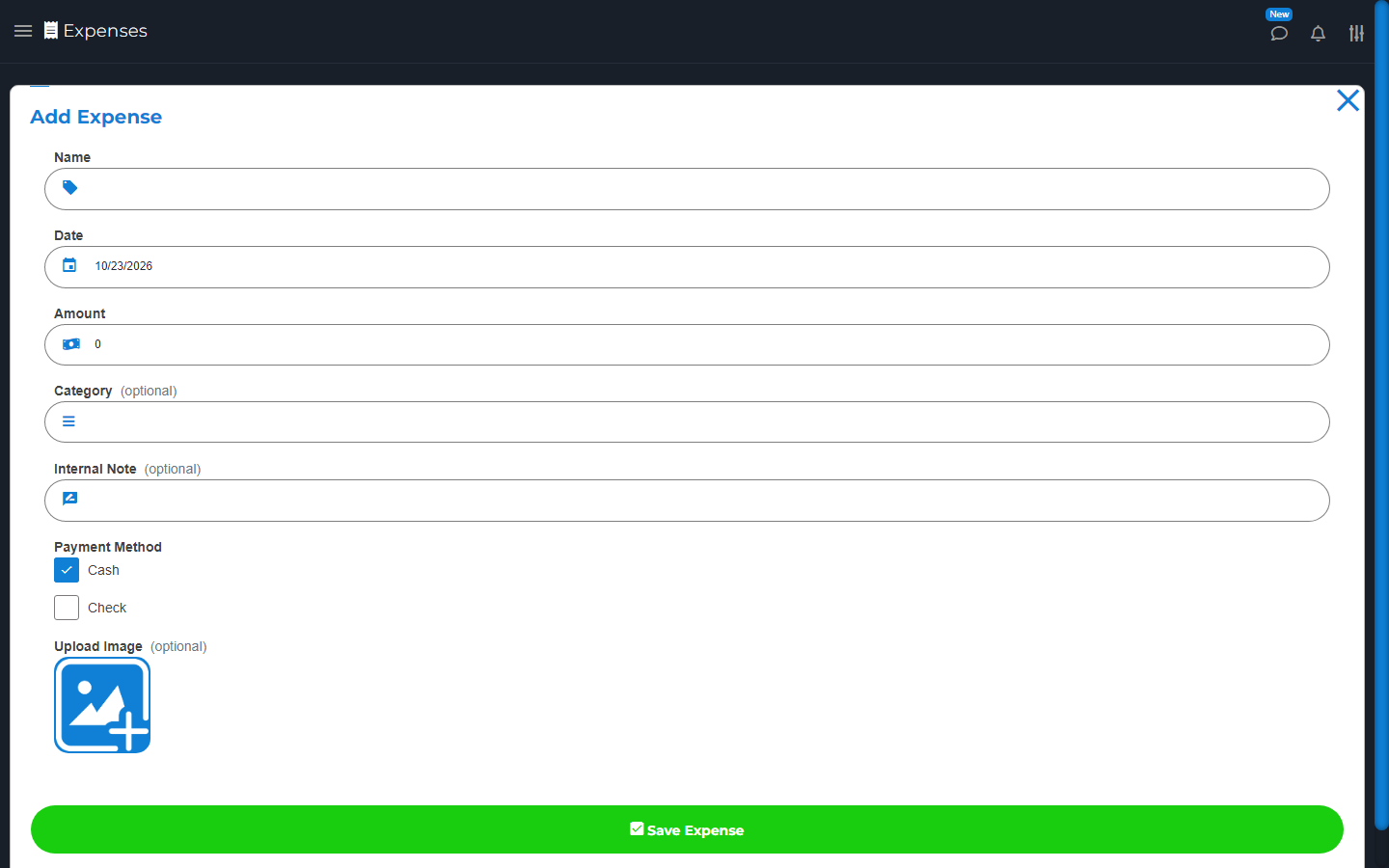
Open Expenses > Add New Expense. Enter the name, amount, date, and payment method. Pick a category and add a note or receipt picture if needed.
Choose Save Expense. Check the saved date and amount so it appears in the right reports.
Open Expenses and choose a day or date range. Use the category filter to narrow the list. Check the totals for the chosen view.
Open an expense to see its details and receipt.
Use Search All Expenses to find a record. You can also use date and category filters.
Clear filters if you do not see it. Check for an existing record before adding the same bill again.
Find the expense and choose Edit. Fix the amount, name, date, method, category, or note. Save and check it again.
Changing this record does not change a payment already made outside the app.
While adding or editing an expense, choose Upload Image. Pick a clear receipt photo, then save the expense.
Open the saved record to check the image. Use its receipt or download option when you need a copy. Keep private card details out of shared images.
Choose Delete on the correct expense and read the message before confirming. This changes your records and reports.
It does not get money back from a vendor. Deleting a category only removes that group label; it does not delete its expenses.