Use Refund to return all or part of a sale. Find the original sale when you can. Check the returned items and amount before you confirm.
Deleting a sale or removing an item from a new cart does not refund a card payment.

 Visit website
Give money back and check the result.
Use Refund to return all or part of a sale. Find the original sale when you can. Check the returned items and amount before you confirm.
Deleting a sale or removing an item from a new cart does not refund a card payment.
If a card refund fails or is unclear, check the payment account before trying again. A saved refund record alone is not proof that the bank sent money back. Card refunds can take time to reach the buyer.
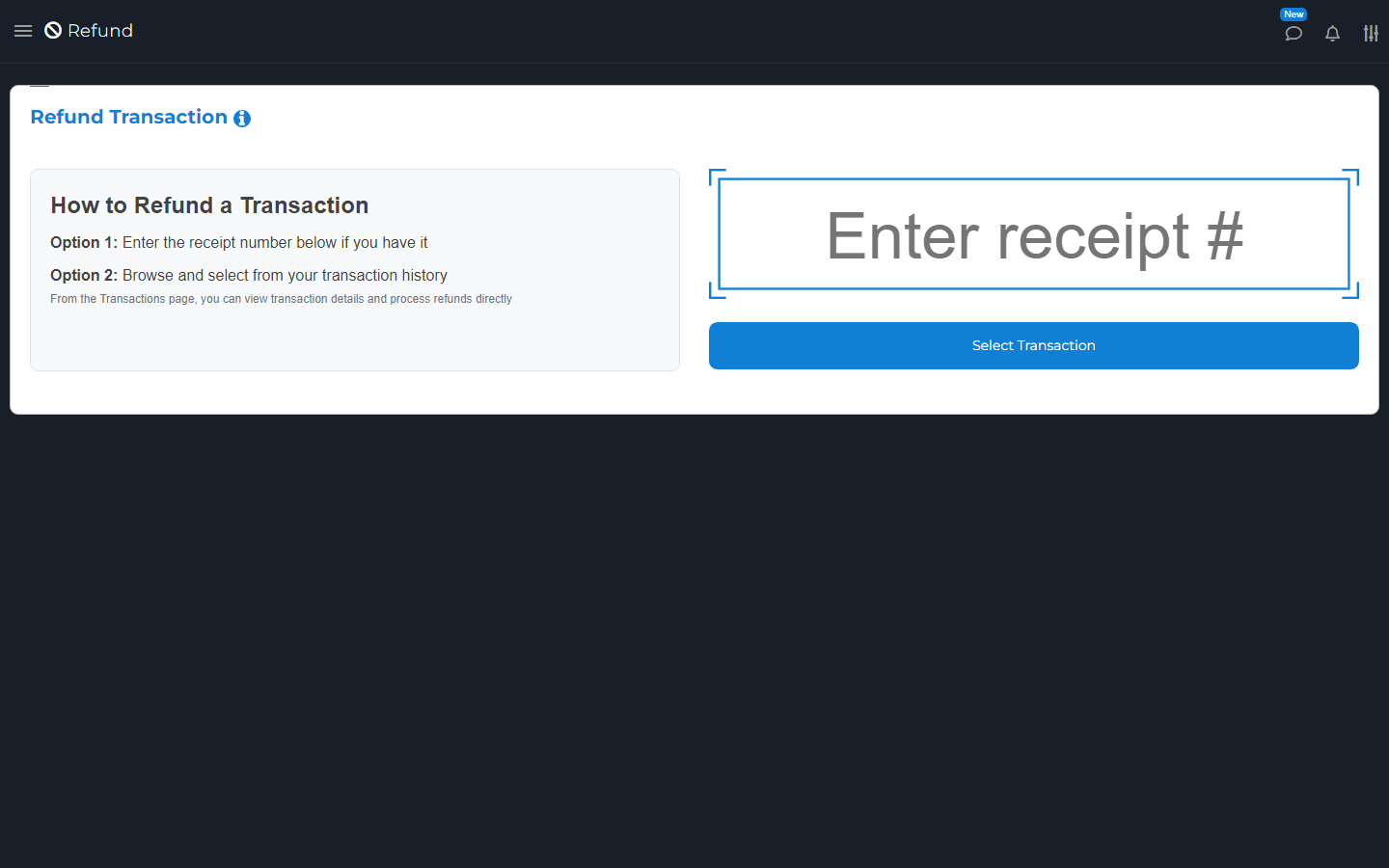
Open Transactions on the refund date. Find the refund and open it. Check the amount, items, method, and original receipt number.
For card payments, check the processor's result too. A processor is the company that handles the card payment, such as Stripe.