Docs Visit website
Hardware & devices

Hardware

Check scanners, printers, scales, and readers.

Overview

A barcode scanner, printer, scale, cash drawer, and card reader each do a different job. Support can help check what works with your device.

Check the model and app platform before buying, as USB, Bluetooth, or Wi-Fi alone does not confirm compatibility.

For card payments, see Connect Terminals, Tap to Pay, or Launch M&M POS on an S700.
Printers

Open Settings > Receipt Printer and use the printer choices shown for your device. Add the supported printer type and give it a clear name.

A network printer needs its correct address and port. A USB or serial printer needs the right local connection. A Bluetooth printer must be on and nearby; use the paired-device list or scan option shown.

Save the printer, select it for receipts, and test one receipt. Check paper size and print quality. See Choose a printer connection for more detail.

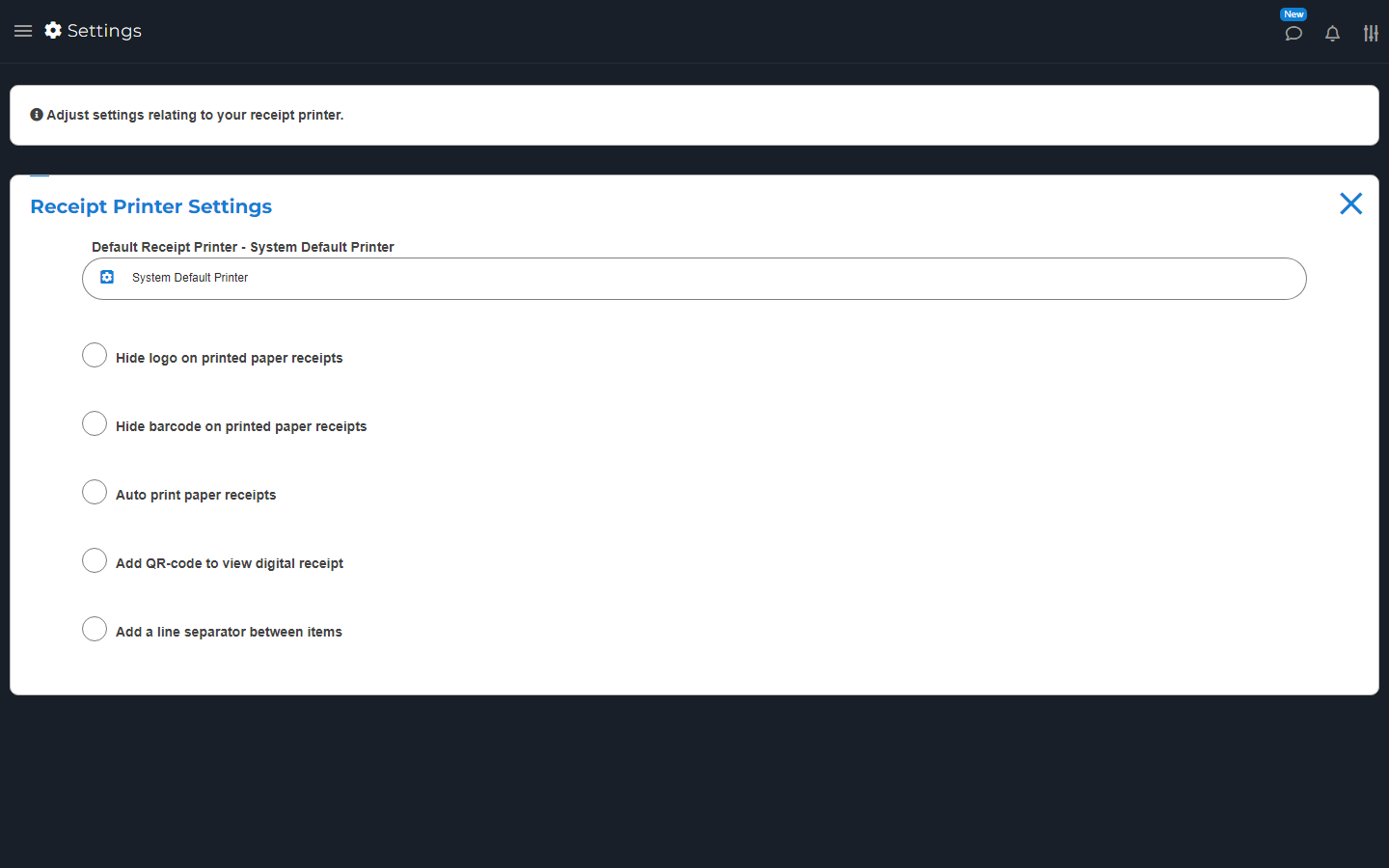
Receipt Printer Settings showing the default printer and receipt choices.
Open Receipt Printer to choose the default printer and receipt options.

Choose a printer connection

Use only the choices shown for your device. For Network Printer, enter the printer's address and port. Both must match the printer setup.

For Bluetooth, turn the printer on. Use Show Paired Devices or Scan For New Devices, choose it, and save. This printer flow is different from Stripe Bluetooth readers, which must be linked through M&M POS.

For USB or ESC/POS, choose the supported connection. ESC/POS is a printer command format. A serial port is a computer connection name. Ask Support if you do not know the correct choice.

Set receipt size and print style

In the printer chooser, set Receipt paper width size to match the paper. The size is in millimeters. Set the text size and print-as-image choice only where offered.

Print one sample and scan any code on it. A cut-off receipt or unreadable code needs a setting or printer check before use.

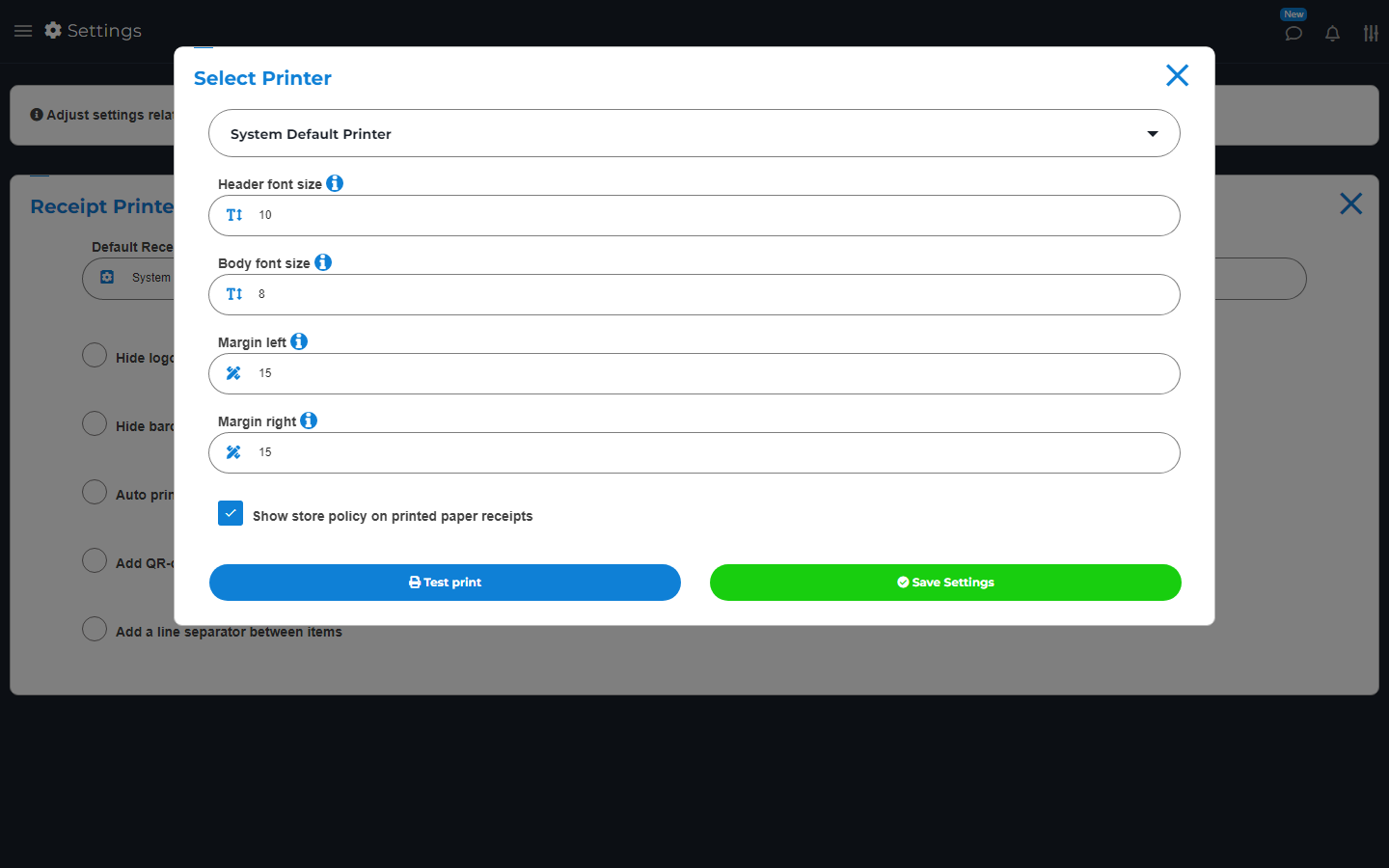
The desktop Select Printer dialog with printer, font size, margin and store policy choices.
Select Printer lets you choose a printer and change print options. The choices depend on your device.

Barcode Scanners

Connect a supported scanner to your device. On Sell or Inventory, put the cursor in the barcode field and scan one item.

Check that the full code appears and the right item is found. Some phones can use the camera scan button instead. A scanner is not a card-payment reader.

Scales

Use a supported scale and set the correct weight unit in Scale Settings. Check a known weight before selling.

If a device has no linked scale, use the manual-weight option. See Scalable Items for item setup and sales.

Deli CAS Scale Labels

Some scale labels include the item code and price. The label format must match what M&M POS expects.

Set Scale Barcode Price Digit Position with help from the setup guide or Support. Test a label and compare its item and total with the scale's printed label. Do not guess the format for a different scale model.

Cash Registers

A cash drawer often plugs into a receipt printer. The app sends an open command through that connection when supported.

Open Settings > Cash Register to set it up. Check the cable and printer with Support if the drawer does not open. A drawer connection is separate from tracking cash totals.

USB Magnetic Card Reader

A basic USB swipe reader can enter a stored code on supported screens. It is not automatically a secure payment terminal.

Use a supported payment reader and payment account for card charges. Do not copy full card details into text fields, notes, or messages.

Search by topic, task or a few words.