

Docs Visit website
Orders & bookings

Invoices

Add-on

Send a bill and check when it is paid.

Overview

Add-on: Send Invoices.

Connect your Stripe account to get this add-on for free.

An invoice is a bill that asks a customer to pay. Use it to list the items, amount, and due date.

A sent invoice is not a paid sale. Check its status and payment result before treating it as paid.
Creating Invoices

  1. Build the cart on Sell and choose Invoice.
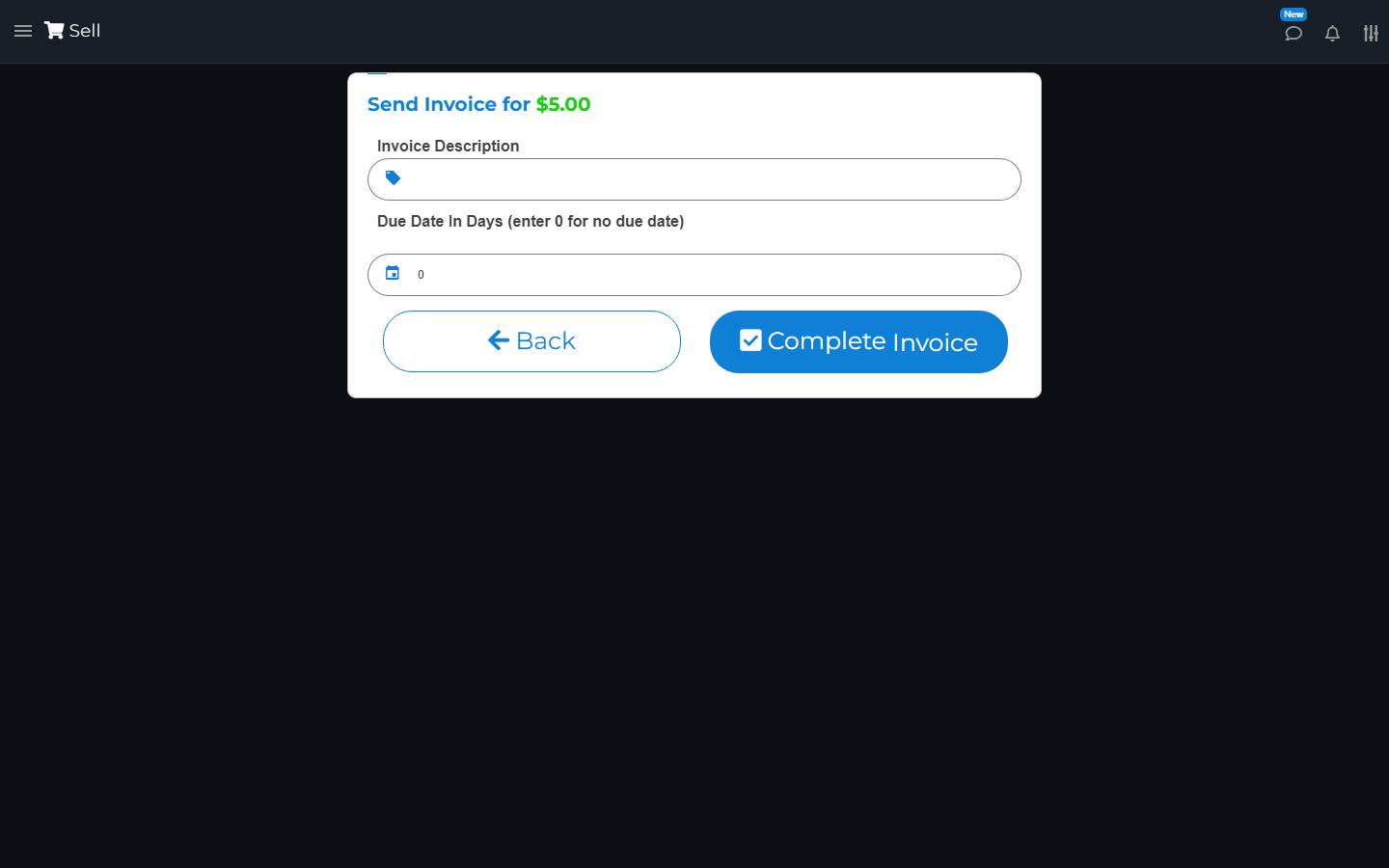
  2. Enter Invoice Description and Due Date In Days. When the number of days is greater than zero, the form shows Customer Email, Late Fee, and Send Reminder Before Due By:. Enter a valid Customer Email when the number of days is greater than zero. Late Fee is optional. Choose the reminder timing you need under Send Reminder Before Due By:.
  3. Check the items, amount, email, and due date shown in the form.
  4. Choose Complete Invoice, or Complete on a smaller screen.
  5. Open the saved invoice in Invoices. Check its number, amount, email, and date. Check the recipient before using the send options. Check the online copy too.

Creating an invoice does not take payment. If the saved or online due date is not what you expected, contact Support before asking the customer to pay. Check the due date on the saved invoice rather than relying on a blank or zero-day entry.

Invoice description and due-date fields for a sample cart, before creating or sending the invoice.
Enter an invoice description and check when payment is due before completing the invoice.

View Invoices

Open Invoices. Choose a date or range, then search or filter by Outstanding, Paid, or Past Due.

Outstanding means money is still due. Past Due means the due date has passed. Open the invoice to check its items, number, due date, and reminders.

Edit Invoices

Open the invoice and choose Edit. Change Invoice Description, Due Date In Days, Customer Email, Late Fee, or Send Reminder Before Due By: as needed. When Due Date In Days is greater than zero, a valid Customer Email is required. Late Fee is optional. Check the shown due date and choose Save Invoice. Reopen the invoice to check the saved result.

Customer Email is the reminder address on this form. It can differ from the email on the customer record. Do not assume that editing an invoice changes a card payment.

Online Payment

Send the invoice link to the correct customer. They open it, check the invoice, and use a payment option shown on the page.

Online card payment needs a supported linked payment account. The buyer should keep the page open until it finishes. If the result is unclear, check the invoice and payment account before asking them to pay again.

Pay Off Invoices

Open the invoice and choose Pay Off. Check the amount and choose how the customer pays. Finish the payment steps.

Reopen the invoice to check its status. Check the payment account for card payments. Do not mark an invoice paid only because the customer opened its link.

Get Signature on an Invoice

Open an invoice and use Get Signature when you need the customer's signature. Let them review the invoice first. A signature is not a payment.

Delete Invoices

Open the right invoice and choose Delete. Read the message and check its payment state before confirming.

Deletion is not a refund. Keep a copy of any invoice you need for your records.

Search by topic, task or a few words.