

Docs Visit website
Online shop

How customers use your shop

Follow the buyer's steps, from finding an item to checking an order.

How customers find items

Customers open your Store Link and choose Shop. They can search, pick a category or subcategory, or use Show only in stock. The Packages choice shows bundles when you sell them.

They open an item to see its details. Choose options means they need to make a choice, such as size, before adding it. Use clear item names and photos to help them find the right thing.
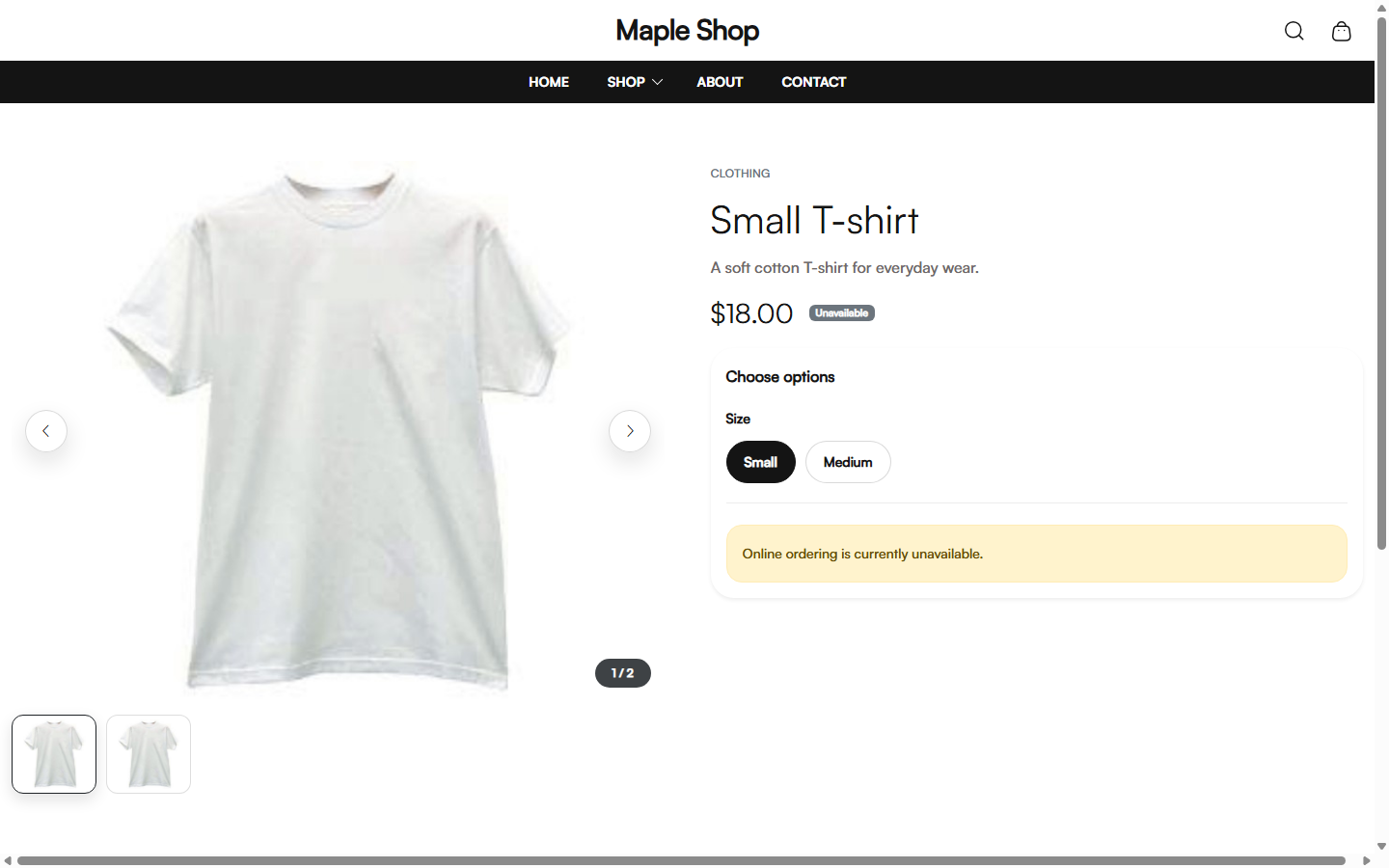
How customers choose an item

On the product page, the buyer checks the photos, price, and text. They choose the size, color, or other options shown. They choose any required modifiers and enter any special instructions.

Shop product page for a sample T-shirt with Small and Medium size choices and an ordering-unavailable message.
Buyers can choose a size here. This sample shop is not taking orders. Sample T-shirt photo: GlennD09, CC BY 2.0.

Then they set the count and choose Add to Cart. The selected item can have a different price or stock than another choice. The buyer should check the cart before paying.

How customers check their cart

The buyer opens Cart to review items, counts, choices, and totals. They change or remove items there before Continue to checkout.

A cart is not a placed order. Stock, offers, and prices may be checked again during checkout. The final checkout total is the amount to review before paying.

How customers use online offers

Add-on

Customers open Offers to read the coupons you chose to show online. They check the dates, required items, and minimum spend.

They copy the code or use a shown Clip or Use at checkout button. In checkout, they apply the code and check the discount before paying.

A displayed offer is not a promise that every cart qualifies. Set the coupon's rules and online visibility in the POS Coupons page.

How customers use online rewards

Add-on

Customers can open Rewards to read how points are earned and what they can get. The names can be points, stars, or the name you set.

In checkout, they use the reward-member step shown. They may need a code sent to their contact details to prove the account is theirs. They pick an eligible reward and check the discount.

They need enough points and the right cart. They can also view reward activity in their account. Set the rules in Customer Rewards in the POS.

How customers place an order

  1. Open the cart and choose Continue to checkout.
  2. In Information, enter the required name and contact details.
  3. For goods, choose how to receive them under Order method or Receive your items. Enter the address, time, or notes requested. A cart with only event tickets skips this step and goes to payment.
  4. In Payment, choose an offered method. Add an eligible coupon or reward if wanted. Check any tip.
  5. Review items, fees, tax, and the full total.
  6. Choose Place order once and wait for the result.

For a goods order with a pay-in-person option, the buyer pays you later. Tickets must be paid online, even when the cart also contains goods. For online payment, they must finish the payment steps. Apple Pay or Google Pay only appears when supported by the device, browser, and payment setup.

What happens after checkout

The buyer should keep the page open while it says the order is being finished. After success, they can review the order details or receipt shown.

If the result is unclear, they should contact your store before trying again. You should check the order and payment account. A bank charge, order record, and confirmation page must be checked together when something goes wrong.

How customers sign in

Add-on

The buyer chooses Sign in or Account in your shop. They choose Email or Phone, enter their own details, and choose Send code.

They enter the received code and choose Sign in. Use a different email or phone lets them correct the contact choice. They should not share the code.

A buyer should use the contact details on their customer record to find their activity. If records are missing, check for a wrong or duplicate customer record. Never give them your store's owner login.

What customers see in their account

The account can show a dashboard, Orders, Purchases, Estimates, Invoices, Appointments, Rewards, and Profile. Available pages depend on the store's setup.

The buyer opens a record to see its details or receipt. Orders and Purchases are not the same list: an order can still be unpaid.

Customers should Sign out on a shared device. Store owners can review the matching records in Customers and the POS record pages.

How customers change their details

The buyer opens Account > Profile. They edit only the fields your store allows, then choose Update Profile.

If the page says changes need review, they are sending you a request. The customer record stays unchanged until you review and apply the request. If edits are off, they must contact you.

Set these rules in Settings > Customer Portal. Check requests and update the correct customer record when review is required.

How customers book a service

Add-on

Customers open Services, choose a service, and read its price and length. They choose a date or date range and an available time, then add a note if needed.

They choose Continue to Checkout and finish the booking and payment steps. A slot shown before checkout is not proof of a completed booking. Check the saved appointment in the POS.

If no times are offered, check the service's hours, length, rules, and existing bookings.

How customers buy tickets

Add-on

Customers open Events and choose an event. They check its place, date, time zone, and ticket rules. They choose ticket types and enter the required attendee details.

They add tickets to the cart and finish checkout. See What an online ticket buyer does for the ticket page and wallet options. Old event pages can stay visible even when tickets can no longer be bought.

About and contact pages

The About Us page uses the text and images set in Online Store > Storefront Appearance. Check that photos and links work.

The Contact page shows the store's contact details and map when set. The customer enters a name, email, and a message of at least 30 characters. The form does not allow links in the message.

Messages go to the store's Receipt Email when set, otherwise its store email. This is not the same as the Online Order Notification Email. Check both addresses in the right settings.

Rules and hours buyers see

Customers use Policies to read your store rules. The page separates your rules from platform website policies. Set your store rules in Business Information.

Business hours can appear on the shop. Online order hours can stop checkout outside your chosen times. Service times control booking slots. Keep these separate sets of hours in agreement with how you work.

How customers join your message list

If your shop shows an email signup form, customers can enter their own email to hear from your store. They should read what they are signing up for and wait for the result.

Manage the list with the Notify Customers add-on. Only send ads with the person's consent. A receipt email and a request for marketing are not the same thing.

Open the shop like an app

A supported browser may let a customer add the shop to their home screen. They can use the browser's install or Add to Home Screen choice when offered.

The shortcut opens your shop. It is a shortcut to the online shop, so checkout still needs an internet connection. Customers still need to complete the normal order steps.

Help a customer who is stuck

Ask what page they are on and read the error they see. Check the item, offer, hours, and order rules that apply to that step.

For a payment, check whether it already went through before asking them to retry. For sign-in, check their contact details without asking for their code.

Use Support in the POS when you need M&M POS help. The shop's Contact form sends a message to your store, not to M&M POS support.

Search by topic, task or a few words.